


We were unable to locate the section you are trying to load, please try again.
1. Visit your dashboard
Access the team space via your 'Dashboard' and 'My teams'.
2. View members
Choose your team and navigate to 'Members'.
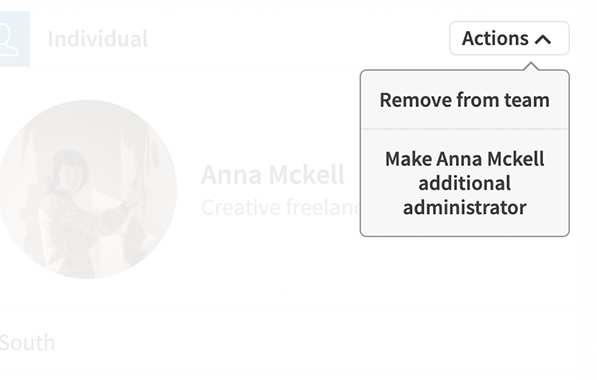
3. Remove a member
Use the arrow next to a member and use the 'remove member' link.
Team administrators have the ability to remove members from a team if required or requested by a user.
To remove a member:
- Use the link to 'sign-in'. This is on the top right hand side for desktops & tablets, and within the main menu for mobiles.
- Locate the dashboard menu. This is on the left hand side of large screens or under a white dropdown at the top for mobiles.
- Select ‘Teams’ and 'Your teams'.
- Select the team where you want to remove a member.
- Use the left-hand menu to navigate to 'Members'.
- Find the member you wish to remove and use the right hand arrow to 'remove member'.